







Managing item records.
In Koha each bibliographic record can have one or more items attached. These items are sometimes referred to as holdings. Each item includes information to the physical copy the library has.
2.2 Editing Items
Items can be edited in several ways.
-
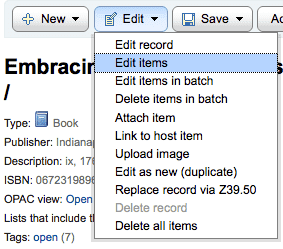
Clicking 'Edit' and 'Edit Items' from the bibliographic record
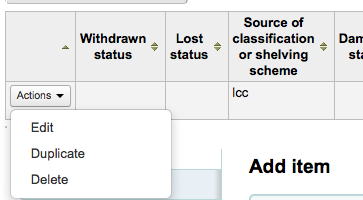
Which will open up a list of items where you can click the 'Actions' button to the left of the specific item you would like to edit and choose 'Edit'.
-
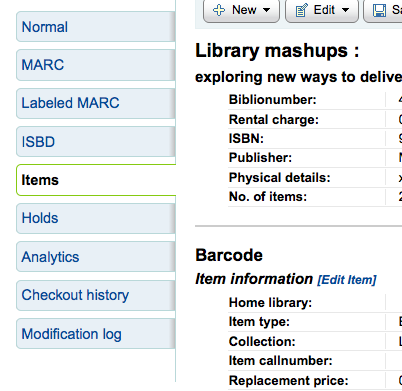
Clicking 'Edit Items' beside the item on the 'Items' tab
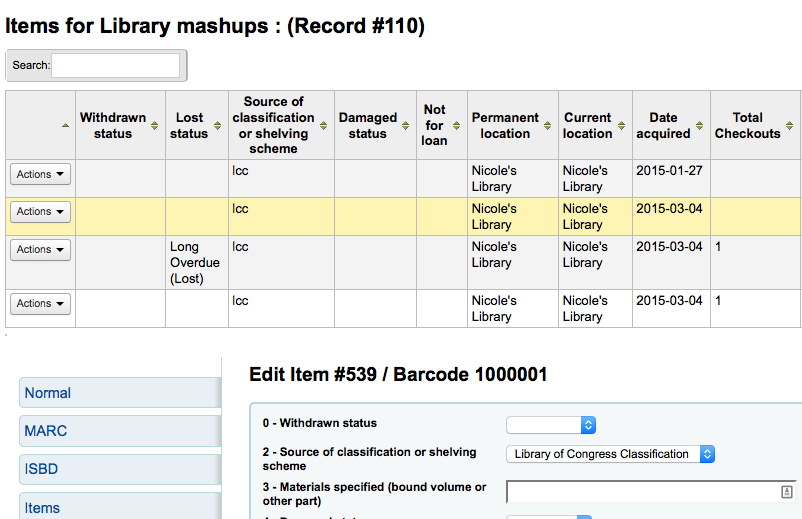
Which will open up the editor on the item you'd like to edit
-
Clicking 'Edit' and then 'Edit items in batch'
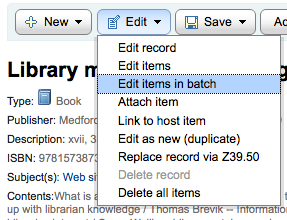
This will open up the batch item modification tool where you can edit all of the items on this record as a batch.
-
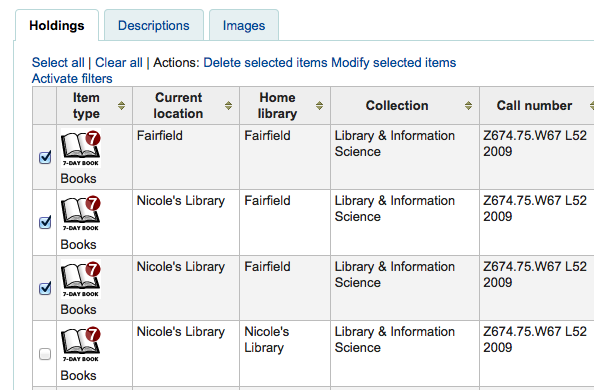
You can also enable StaffDetailItemSelection to have checkboxes appear to the left of each item on the detail display. You can then check off the items you would like to edit and click 'Modify selected items' at the top of the list.
-
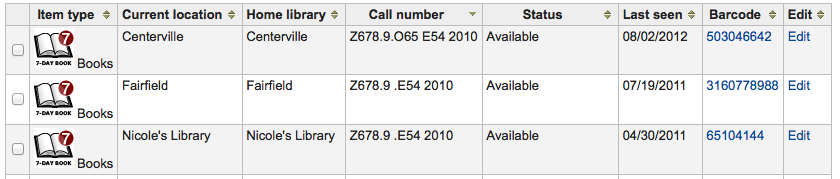
You can click 'Edit' to the right of each item in the Holdings tab
-
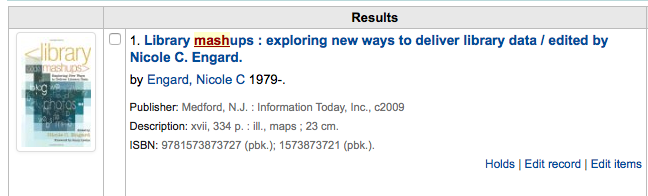
There is also a link to Edit items from the search results in the staff client
-
Finally you can use the Batch Item Modification tool
Often circulation staff need to change the status of an item to Lost or Damaged. This doesn't require you to edit the entire item record. Instead clicking on the item barcode on the checkout summary or checkin history will bring you to an item summary. You can also get to the item summary by clicking on the Items tab to the left of the bib detail page.
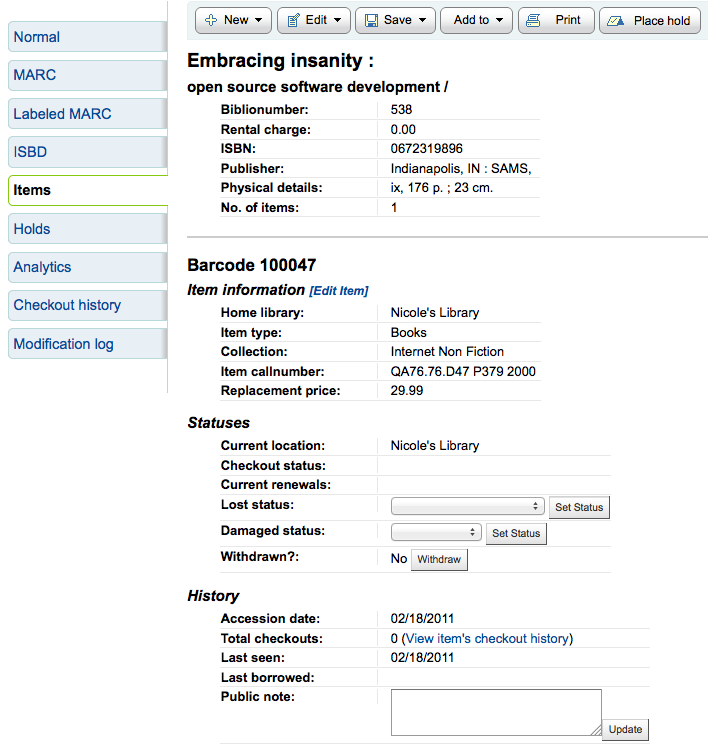
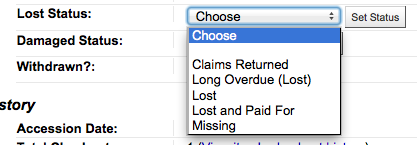
From this view you can mark an item lost by choosing a lost status from the pull down and clicking the 'Set Status' button.
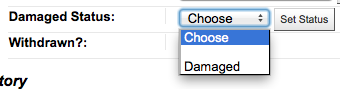
You can also mark an item as damaged by choosing a damaged status from the pull down and clicking the 'Set Status' button.
2.2.2 Duplicating Items
You can easily duplicate each item by clicking the 'Action' button the left of each item on the edit items screen
From here you can choose to 'Duplicate' the item and this will populate the form with the values from the item you chose.