







Managing biblographic records.
In Koha the bibliographic record contains the main information related to the material. This includes things like the title, author, ISBN, etc. This information is stored in Koha in Marc (different flavors of Marc are supported in Koha). Once this information is saved, items or holdings can be attached.
1.1 Adding Records
Records can be added to Koha via original or copy cataloging. You can also choose to use the basic or advanced cataloging interface for all of your work.
If you would like to catalog a record using a blank template in the basic editor
-
Click 'New Record'
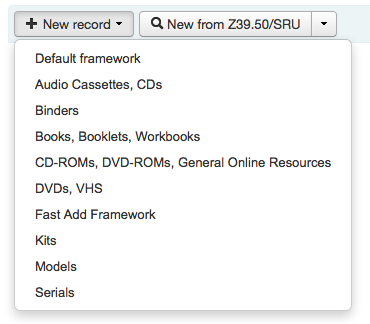
-
Choose the framework you would like to base your record off of
-
If you would like to catalog a record using a blank template in the advanced editor
-
Enable the EnableAdvancedCatalogingEditor preference
-
Click the 'Advanced editor' button

If you want to catalog a record based on an existing record at another library in the editor you last used (basic or advanced)
-
Click 'New from Z39.50/SRU'
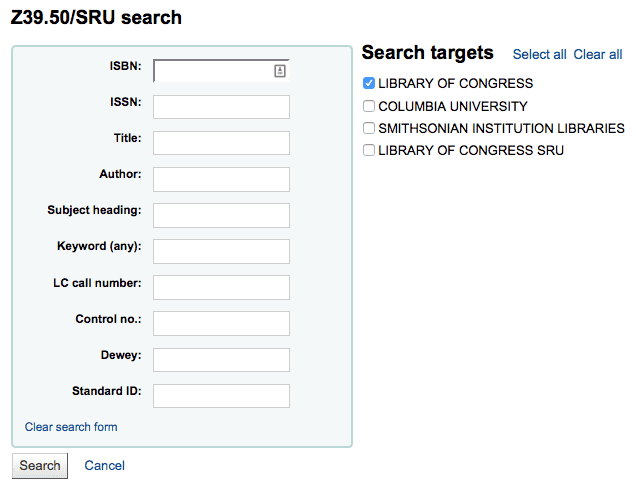
-
Search for the item you would like to catalog
Search targets can be altered by using the Z39.50 Admin area.
From the results you can view the MARC or Card view for the records or choose to Import them into Koha
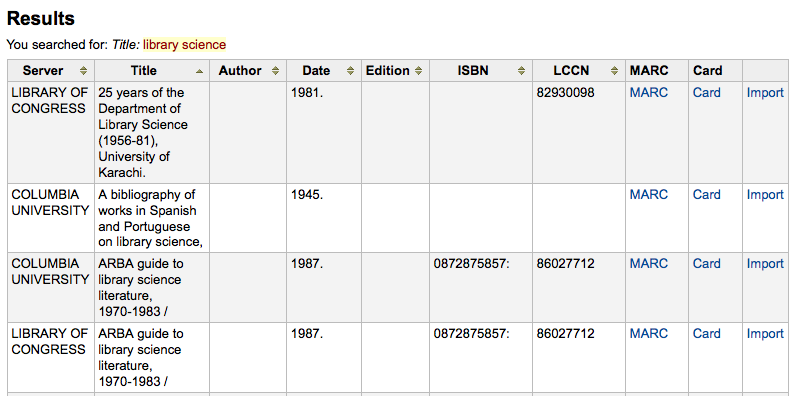
In addition to the Import link to the right of each title, you can click on the title you're interested in and a menu will pop up with links to preview the record and import it

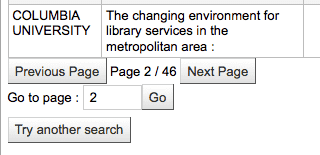
If you don't find the title you need in your Z39.50 search results you can click the 'Try Another Search' button at the bottom left of your results
1.1.1 Basic Editor Cataloging
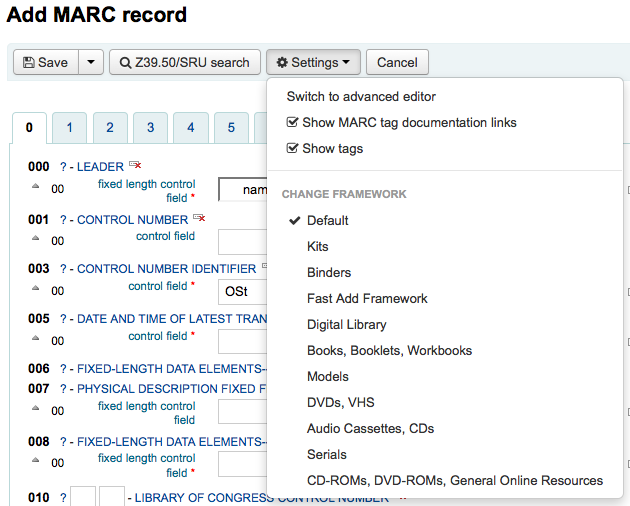
In the basic editor once you've opened a blank framework or imported a record via Z39.50 you will be presented with the form to continue cataloging
-
If you would rather not see the MARC tag numbers you can change the value in your hide_marc system preference or each user can check the box next to 'Show tags' found under 'Settings'.
-
To expand a collapsed tag click on the tag description
-
To get help from the Library of Congress on a Marc tag click the question mark (?) to the right of each field number
-
If you feel that this clutters the screen you can hide the question marks by unchecking the box next to the 'Show MARC tag documentation links' note found under 'Settings'
-
-
Sometimes fields may not be editable due to the value in your BiblioAddsAuthorities system preference. If you have this preference set to not allow catalogers to type in fields controlled by authorities you may see a lock symbol to the left of the field.

-
If this icon appears you must click the icon to the right of the field to search for an existing authority.
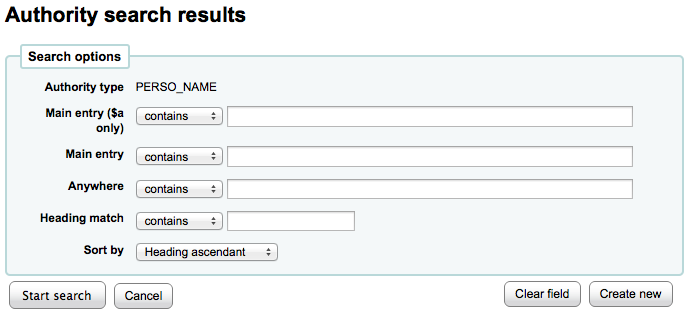
-
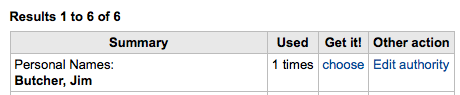
From the results list click 'Choose authority' to bring that into your catalog record
-
-
To duplicate a field click on the 'repeat this tag' icon to the right of the tag

-
To move subfields in to the right order, click the up arrow to the left of the field
-
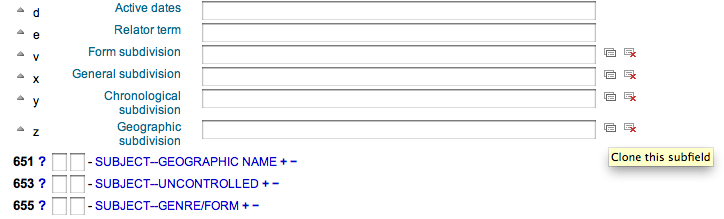
To duplicate a subfield click on the clone icon (to remove a copied field, click the delete clone icon) to the right of the field
-
To remove a subfield (if there is more than one of the same type), click the - (minus sign) to the right of the field
-
-
To use a plugin click on the icon to the right of the filed
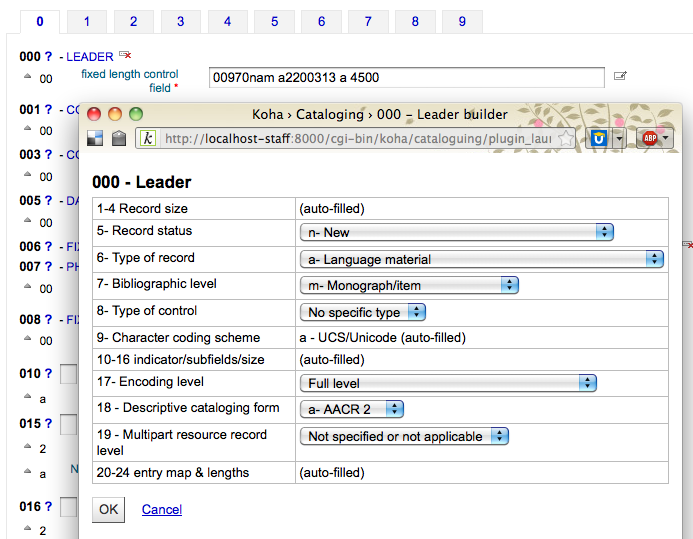
-
Some fixed fields have editors that will change based on the material type you're cataloging (for example the 006 and the 008 fields)
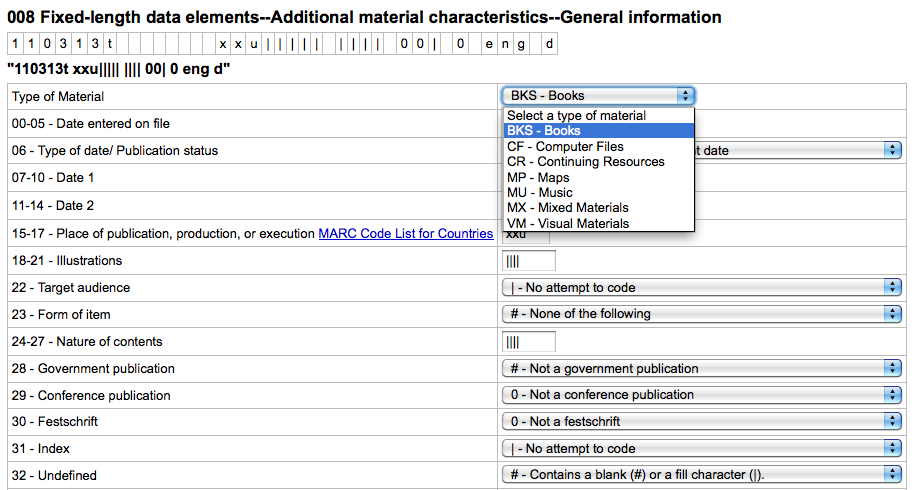
-
-
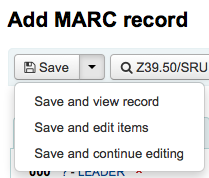
Once you've finished, click the 'Save' button at the top and choose whether you want to save and view the bib record you have created or continue on to add/edit items attached to the record
-
Choosing 'Save and view record' will bring you right to the record you just cataloged
-
Choosing 'Save and edit items' will bring you to the add/edit item form after saving the bib record so that you can attach holdings
-
Choosing 'Save and continute editing' will allow you to save your work so far and keep you in the editor to continue working
-
-
If you are about to add a duplicate record to the system you will be warned before saving
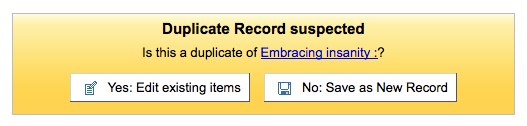
-