


Managing item records.
In Koha each bibliographic record can have one or more items attached. These items are sometimes referred to as holdings. Each item includes information to the physical copy the library has.
2.1 Adding Items
After saving a new bibliographic record, you will be redirected to a blank item record so that you can attach an item to the bibliographic record. You can also click 'Add/Edit Items' from the cataloging search results

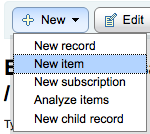
or you can add new item at any time by clicking 'New' on the bibliographic record and choosing 'New Item'
The item edit form will appear:
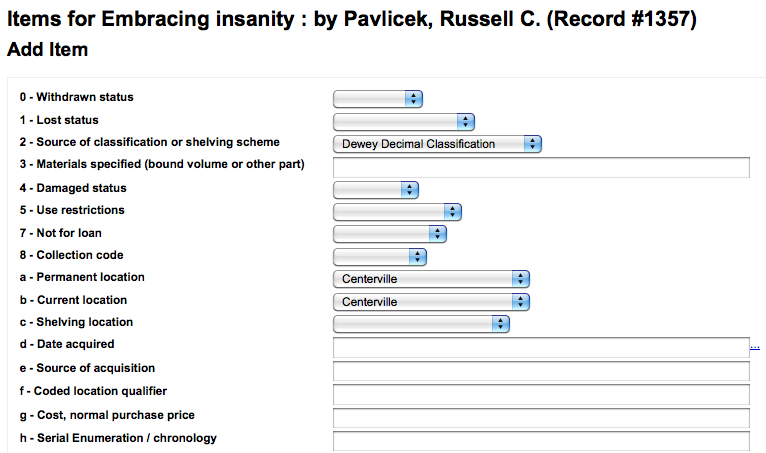
At the very least, if you plan on circulating the item, the following fields should be entered for new items:
-
2 - Source of classification
-
a - Permanent location
-
b - Current location
-
o - Full call number
-
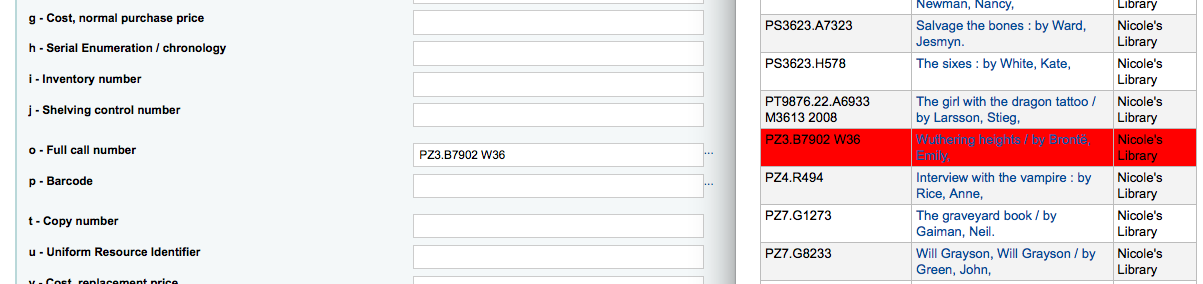
If you'd like you can use the call number browser plugin for this field. If it's enabled you'll see a ... to the right of the field. When clicked that will open a call number browser window if the row is highlighted in Red then the call number is in use, if there is a thin Green line instead then the call number can be used.
-
-
p - Barcode
-
v - Cost, replacement price
-
This value will be charged to patrons when you mark an item they have checked out as 'Lost'
-
-
y - Koha item type
To make sure that these values are filled in you can mark them as mandatory in the framework you're using and then they will appear in red with a 'required' label. The item will not save until the required fields are filled in.

-
Add Item will add just the one item
-
Add & Duplicate will add the item and fill in a new form with the same values for your to alter
-
Add Multiple items will ask how many items and will then add that number of items adding +1 to the barcode so each barcode is unique
Below the add form there are 3 buttons for adding the item

Your added items will appear above the add form once submitted
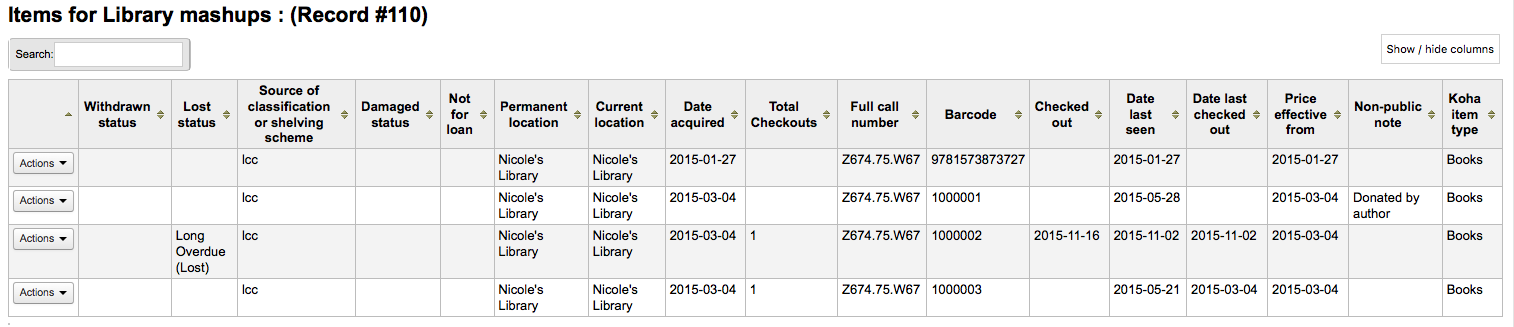
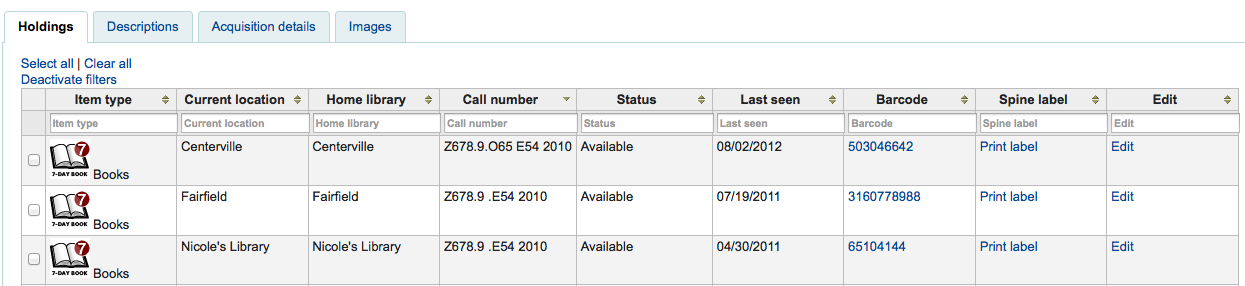
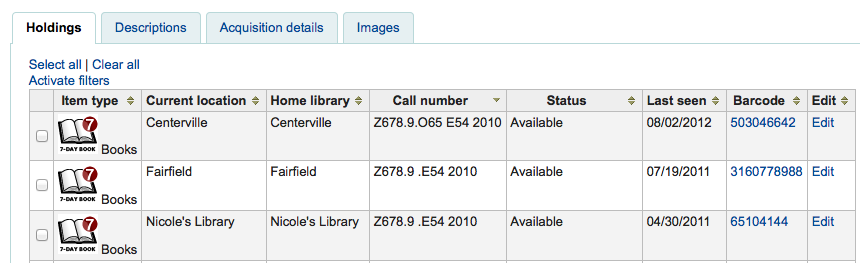
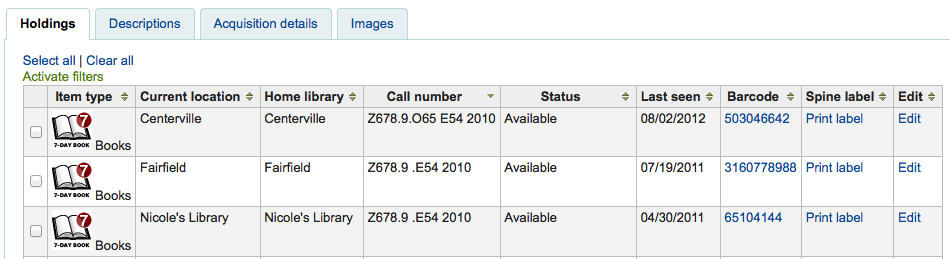
Your items will also appear below the bibliographic details on the bib record display.
If you have SpineLabelShowPrintOnBibDetails set to 'Display' then there will also be a link to print a quick spine label next to each item.
You can also filter the contents of your holdings table by clicking the 'Activate filters' links. This will show a row at the top where you can type in any column to filter the results in the table.