





Adding Analytic Records | Best Book Buddies
  1. Koha ManualKoha Manual
  2. Cataloging
  3. Managing biblographic records.

Cataloging

Managing biblographic records.

In Koha the bibliographic record contains the main information related to the material. This includes things like the title, author, ISBN, etc. This information is stored in Koha in Marc (different flavors of Marc are supported in Koha). Once this information is saved, items or holdings can be attached.

In order to use the Advanced cataloging editor you need to enable the EnableAdvancedCatalogingEditor preference.

Important

This feature is currently experimental, and may have bugs that cause corruption of records. It also does not include any support for UNIMARC or NORMARC fixed fields. Please help us test it and report any bugs, but do so at your own risk.

In the advanced editor once you've opened a blank framework or imported a record via Z39.50 you will be presented with the form to continue cataloging
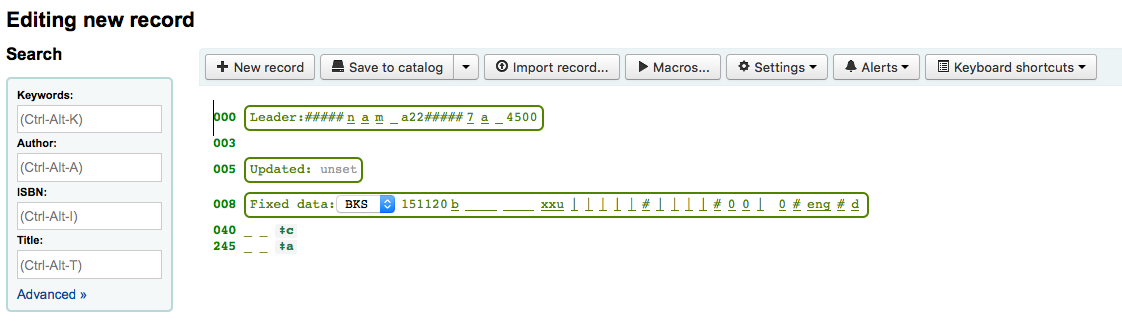
Using the search box on the left you can perform Z39.50 searches

And from those Z39.50 results you can view the marc record by clicking the link to the right
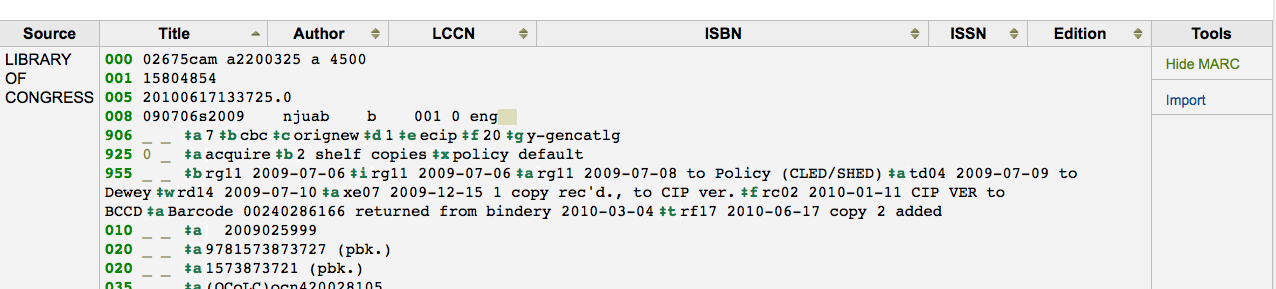
Clicking 'Import' will bring the record in to the editor where you can perform your edits
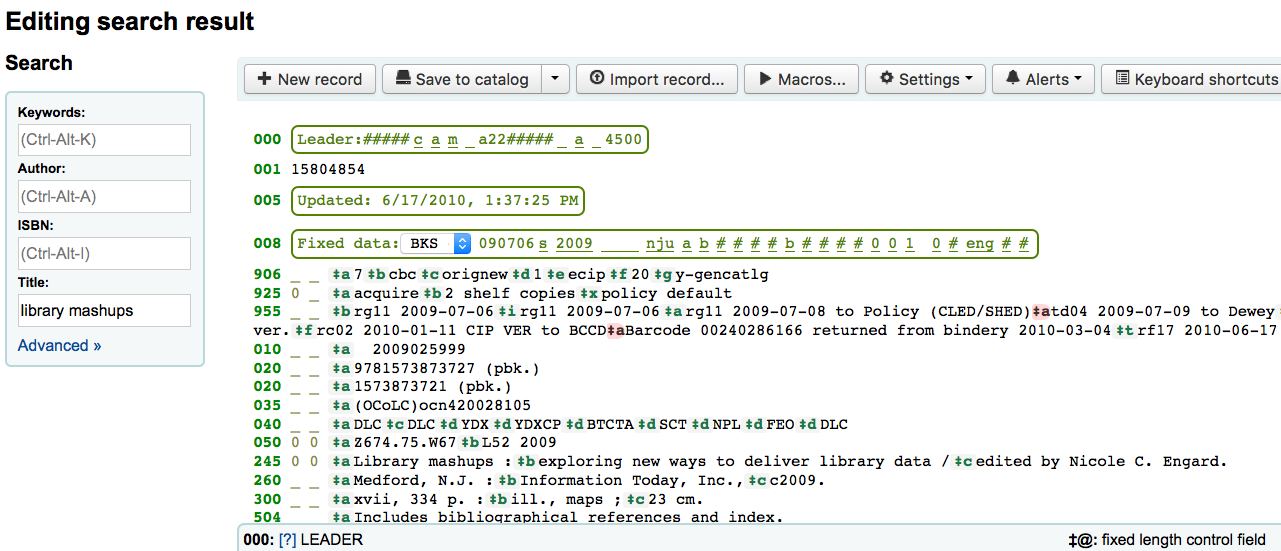
Note

When adding a new field in the Advanced Editor, you need to key underscores for a blank indicator, and surround the indicators with spaces.

Note

You need to key a space before the first subfield delimiter, but not before or after other subfield delimiters in the field.

At the bottom of the editor you will see help from the Library of Congress for the field you are on. In cases where your MARC is invalid you will see red highlighting. To edit the record using only keyboard functions the Keyboard shortcuts button will inform you of the necessary commands
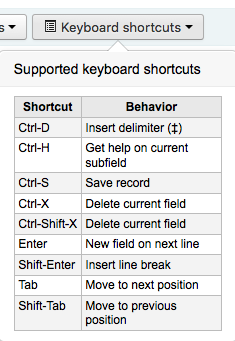
The following keyboard shortcuts can be used in the advanced cataloging module to save time and clicking.

Shortcut Behavior
Ctrl-D Insert delimiter (‡)
Ctrl-H Get help on current subfield
Ctrl-S Save record
Ctrl-X Delete current field
Ctrl-Shift-X Delete current subfield
Enter New field on next line
Shift-Enter Insert line break
Tab Move to next position
Shift-Tab Move to previous position

To record a new macro:

  • Select the "> Macros..." button

  • A window will pop up. In this window, select "New macro...," key the new macro's name in the pop-up box and select OK.

  • Now click to the right of the little number 1, and key the first line of your macro. For a multi-line, i.e., multi-field macro, hit the return key so that a little number 2 appears, and key the second line/field, etc.

  • Your macros will be automatically saved. When finished you can select the "x" to close the window, or select a macro to run on the record that you're editing, or select another macro to run.

To edit an existing macro:

  • Select the "> Macros..." button

  • A window will pop up. In this window, select the macro that you wish to edit & make your changes.

  • Your work will automatically be saved, and when finished you can select the "x" to close the window, or select a macro to run on the record that you're editing, or select another macro to run.

The basic syntax of the macro language:

  • new 500=‡aEdited with Rancor

    • Creates a new 500 with a ‡a subfield and sets it to "Edited with Rancor".

  • 245c= by J.K. Rowling.

    • Sets the first ‡c subfield of the first 245 tag in the record to " by J.K. Rowling", creating it if necessary.

  • 082a={084a}

    • Sets the ‡a subfield of the first 082 tag (creating the subfield if necessary) to the contents of the first 084‡a.

  • indicators=_1

    • Sets the indicators of the last mentioned tag (in this case, 082) to "_" and "1".

  • new 090a=Z674.75.W67

    • Creates a new ‡a subfield on the first 090 (but only if that field already exists) and sets it to Z674.75.W67.

  • new 090a at end=Z674.75.W67

    • Same as above.

  • new 245b after a= a tale of might and magic /

    • Creates a new ‡b after the first a subfield and sets it to " a tale of might and magic /".

  • delete 245b

    • Deletes the first ‡b subfield on the first 245 to ‡b

Libraries sometimes make journal articles and articles within monographs and serials accessible to library patrons through analytics cataloging. Analytics cataloging creates separate bibliographic records for these articles, chapters, sections, etc. found within a larger resource such as a book, an article within a journal, newspaper or serial. In analytics cataloging, although a separate bib record is created for the title, it is not physically separated from the host item. Learn more about Analytics in Chapter 13 of AACR2.

If you would like to catalog analytic records there are two options. One is to use the Easy Analytics funtion; the other is the Analytics Enhanced Workflow.

The Easy Analytics feature makes linking analytic records together easier. The first thing you need to do is set the EasyAnalyticalRecords preference to 'Display' and the UseControlNumber preference to 'Don't use.'

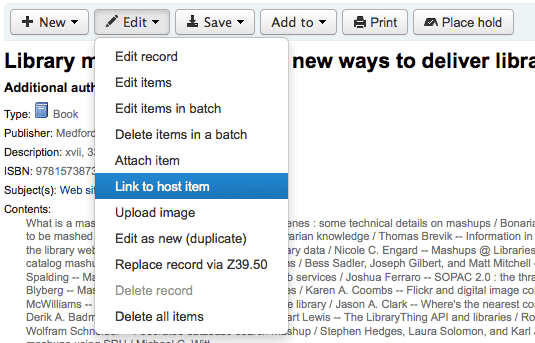
After cataloging your analytic record (see Adding Records for more on creating records) click 'Edit' from the normal view and choose to 'Link to Host Item'

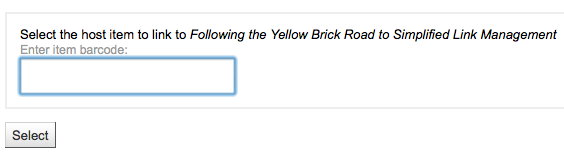
This will prompt you to enter the barcode for the item this record should be linked to.

After entering the item's barcode and clicking 'Select' you will receive a confirmation message.

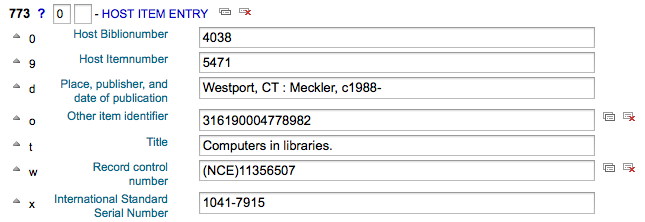
The record will now have the 773 field filled in properly to complete the link.

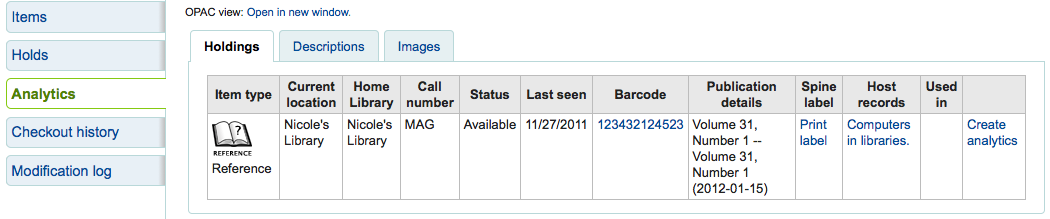
To view all of the items tied to the host record, do a search for the record, click the Analytics tab on the left and the analytics tied to each barcode will be shown under the "Used in" column.

Note

It is also possible to create analytic records from this screen by clicking on "Create Analytics"

You can also see the analytics attached to this record by clicking the 'Show Analytic' link towards the top of the record in the normal view.

When looking at the anaytic record you will also see a link to the host item under the 'Host records' column in the holdings table when viewing the 'Analtyics' tab.

To use the Enhanced Workflow method of adding analytics, the first thing you need to do is set the EasyAnalyticalRecords preference to 'Don't display' and the UseControlNumber preference to 'Use.'

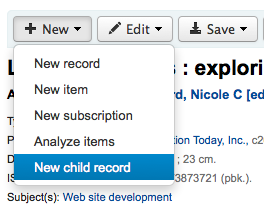
After cataloging your original record (see Adding Records for more on creating records) click 'New' from the normal view and choose to 'New child record.'

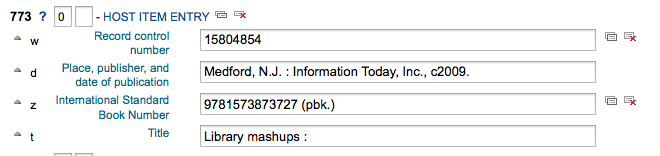
This will open a new blank record for cataloging. The blank record will only have the 773 field filled in properly to complete the link once the record is saved.

To view all of the items tied to the host record, do a search for the record, click the Analytics tab on the left and the analytics tied to each barcode will be shown under the "Used in" column.

You can also see the analytics attached to this record by clicking the 'Show Analytic' link towards the top of the record in the normal view.

When looking at the anaytic record you will also see a link to the host item under the 'Host records' column in the holdings table when viewing the 'Analtyics' tab.

If you have linked an analytic record incorrectly you can remove that link by editing the item on the analytic record (not the host record). To do this, go to the analytic record and click the 'Edit' button and choose to 'Edit items'. To the left of each item you will see two options.

  • Clicking 'Edit in Host' will allow you to edit the item on the host record.

  • Clicking 'Delink' will remove the 773 field and the link between the analytic and the host.

"You are seeing this manual, thanks to Koha Community"